
How to set up your SMM panel: connect a supplier, add a service, check its rule, read your orders
November 13, 2026

Marcus Reed
Head of Storefront Operations
A live panel with nothing to sell takes no orders. Connect a supplier, pick a service from its catalogue, check where its orders go, then follow orders and profit. Video and step-by-step screenshots.
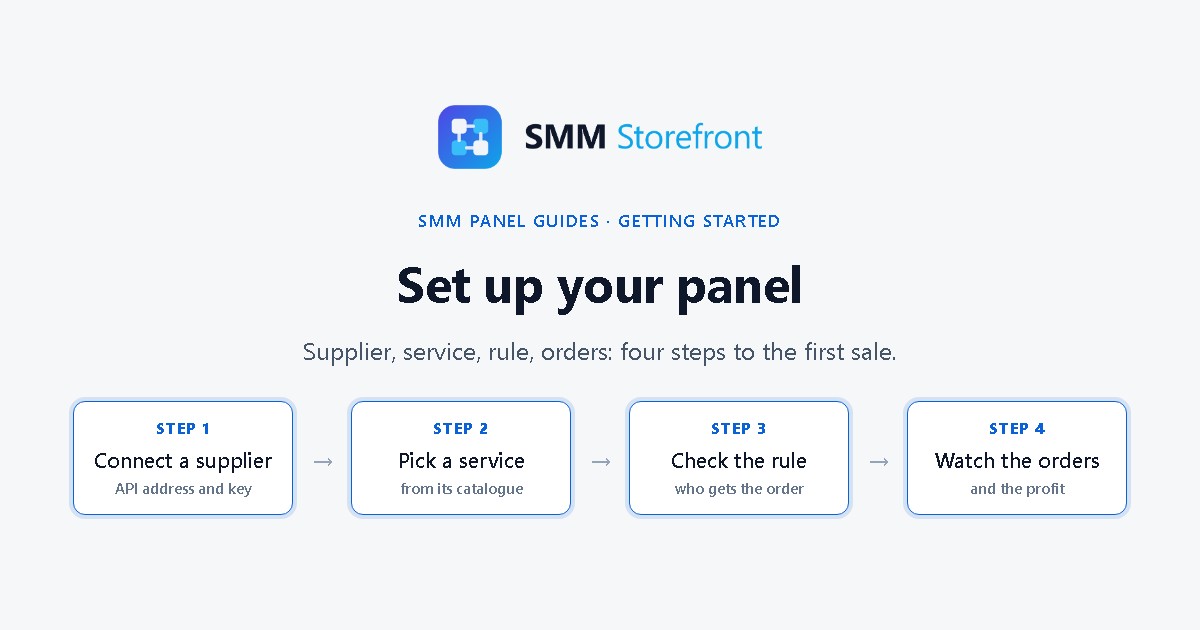
Prefer to watch? The video covers everything below in a little over two minutes.
The problem
Your domain is connected and the panel is live, but it has nothing to sell. The usual way to fill it is to copy services from a supplier's price list by hand: name, cost, minimum, maximum, a few hundred times. Then the supplier changes a cost, nobody notices, and a service sells under cost for a week.
The four steps
| Step | Where | What you get |
|---|---|---|
| 1. Connect a supplier | Suppliers | Its services and costs, kept up to date for you |
| 2. Pick a service | Services, Supplier services tab | A service on sale at your price |
| 3. Check the rule | The service's forwarding rule | Proof of where an order goes and what you keep |
| 4. Watch the orders | Orders and Reports | Status, profit per order, totals by day |
The strip at the top of the Services and Suppliers pages counts the same steps, so you can always see how far along you are.
1. Connect a supplier
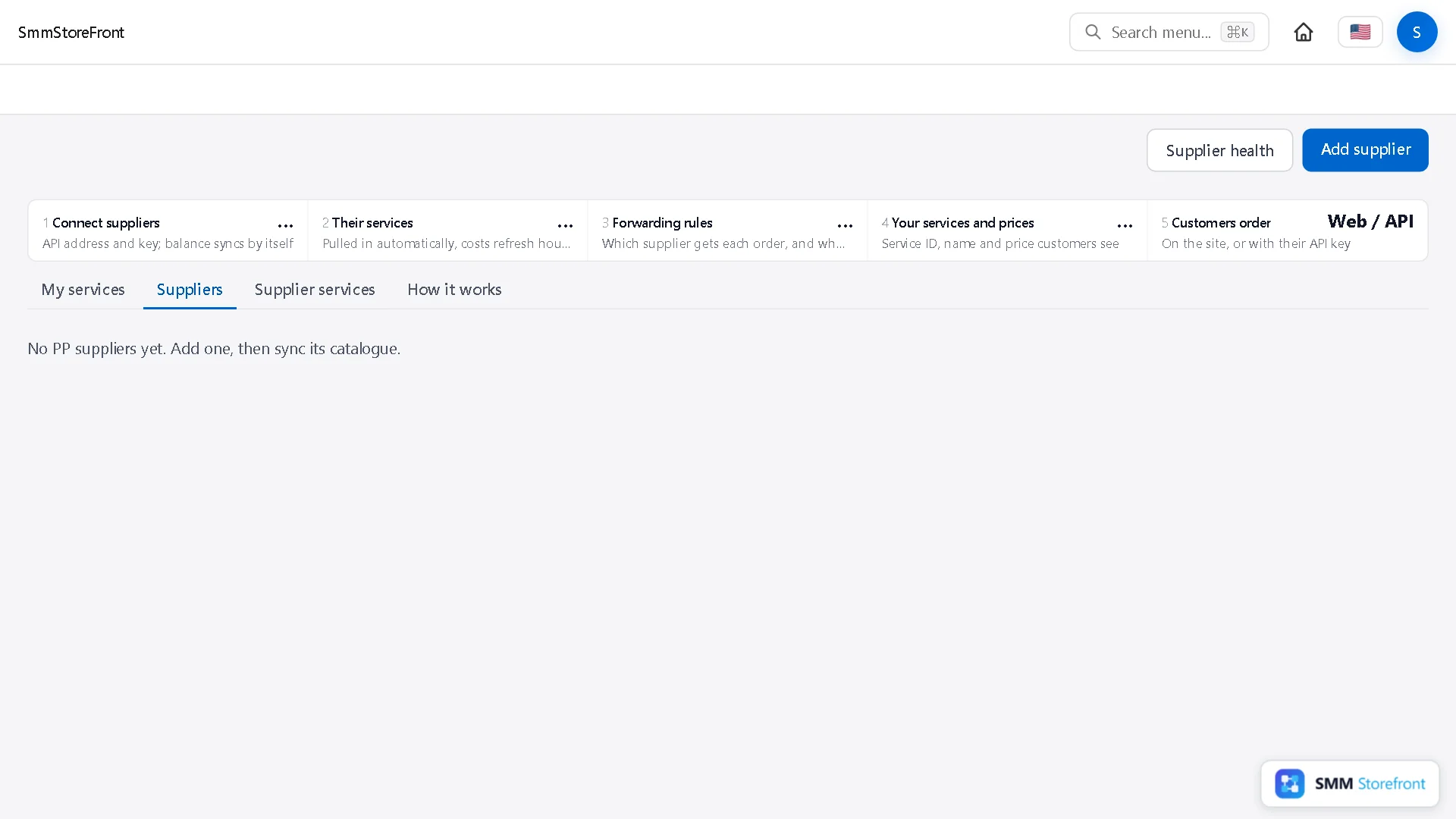
Open Suppliers. A new panel has none yet. Click Add supplier.
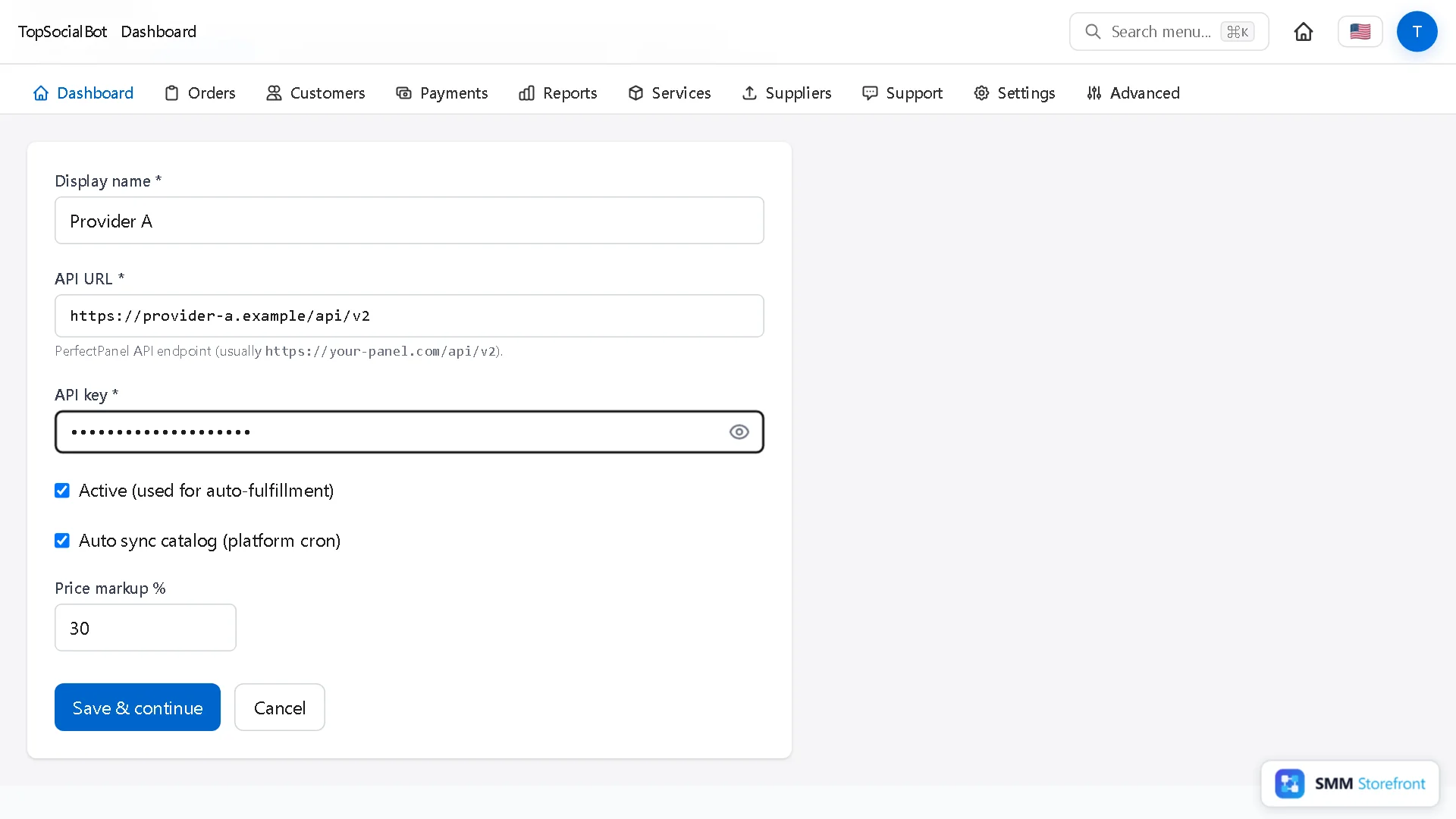
Fill in three things:
- Display name: what you want to call this supplier. Only you see it.
- API URL: the supplier's API address, usually ending in
/api/v2. - API key: the key from your account at the supplier.
Any supplier that speaks the standard panel API works. When you click Save & continue, the connection is checked by asking the supplier for your balance, so a wrong address or key is caught on the spot.
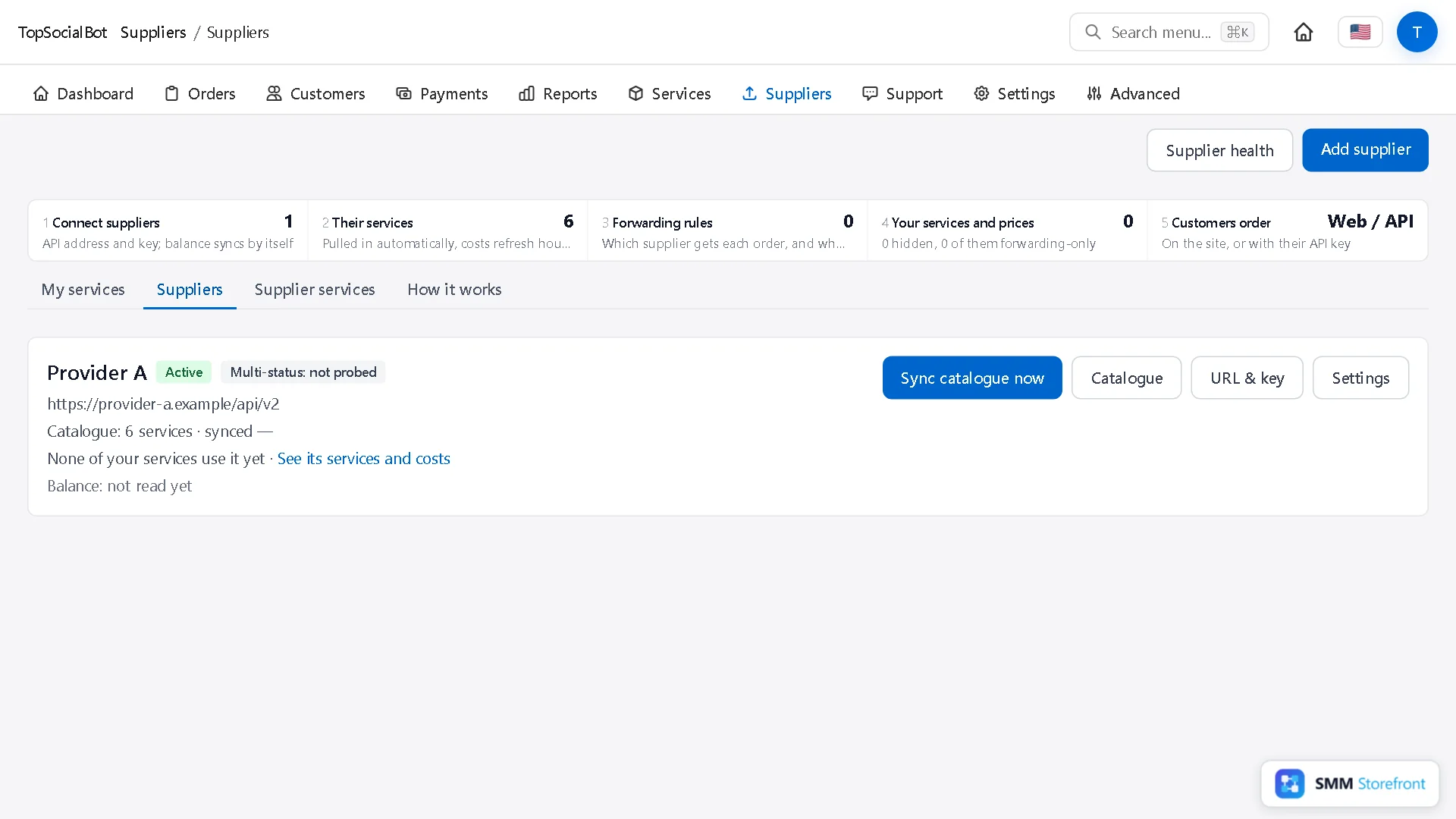
Back on Suppliers, the supplier shows how many services its catalogue has. You do not import them one by one: they come in by themselves, and their costs refresh every hour.
2. Pick a service to sell
Open the Supplier services tab. It lists everything your suppliers offer, with the cost per 1,000, the quantities they accept, and whether one of your services already uses it. Find the one you want and click Create panel service.
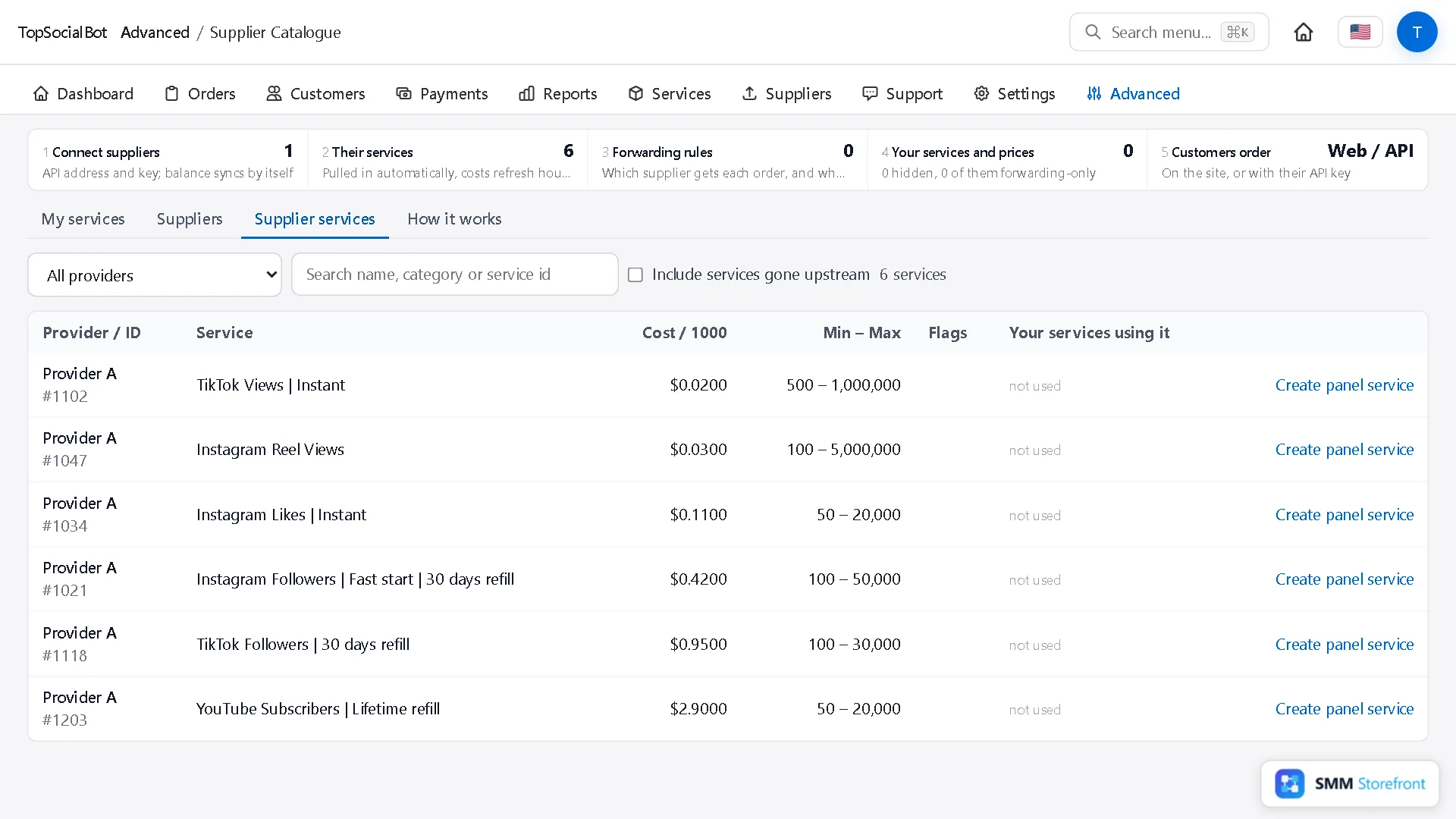
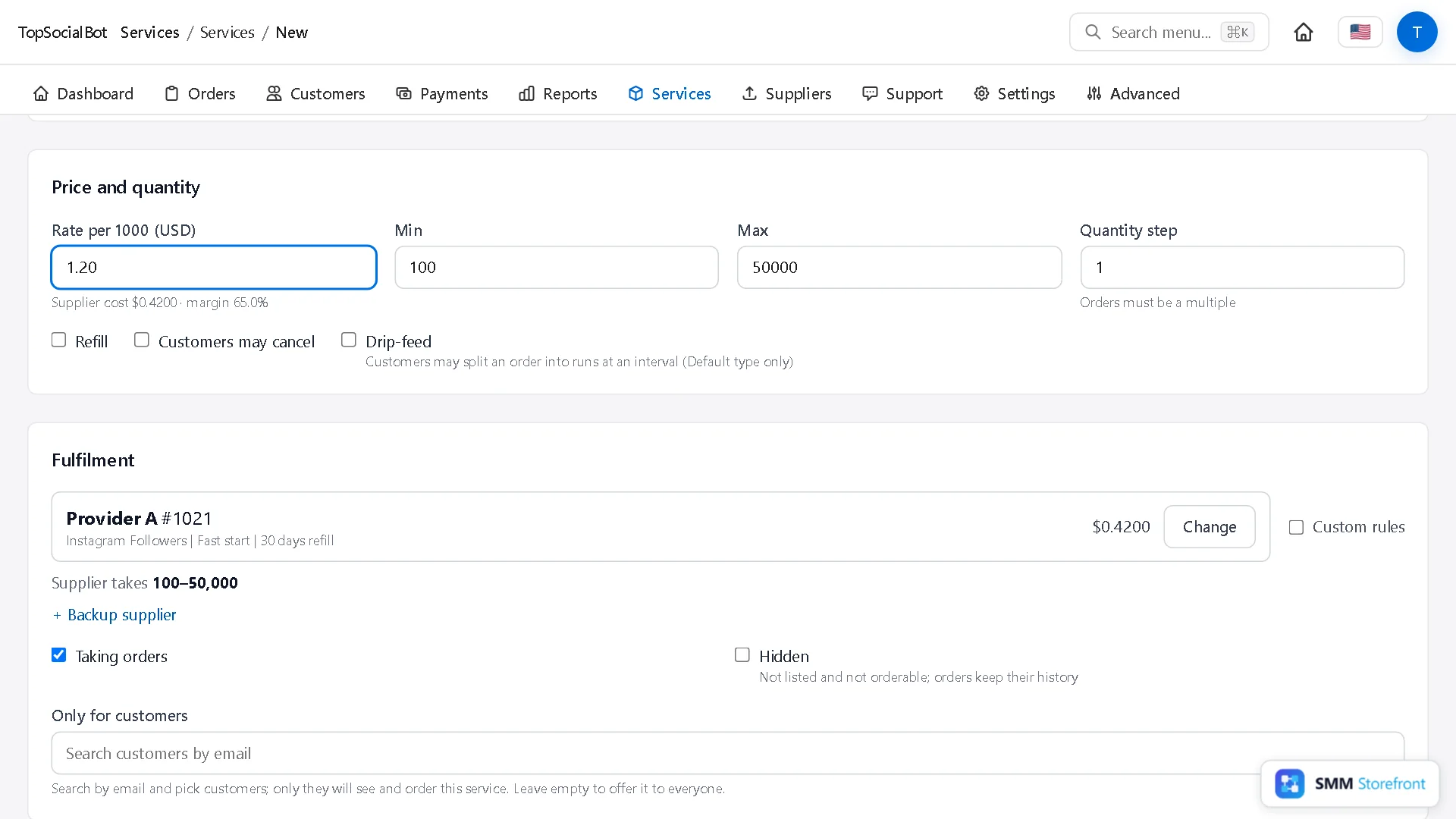
The form opens with the name, the limits and the cost already filled in. You add:
- Platform and Category, picked from the lists. They decide where the service is filed on your site.
- Rate per 1000: your price. The supplier cost and your margin are shown under the field as you type.
Check the minimum and maximum, tick Refill or Customers may cancel if the supplier service supports them, and click Create service.
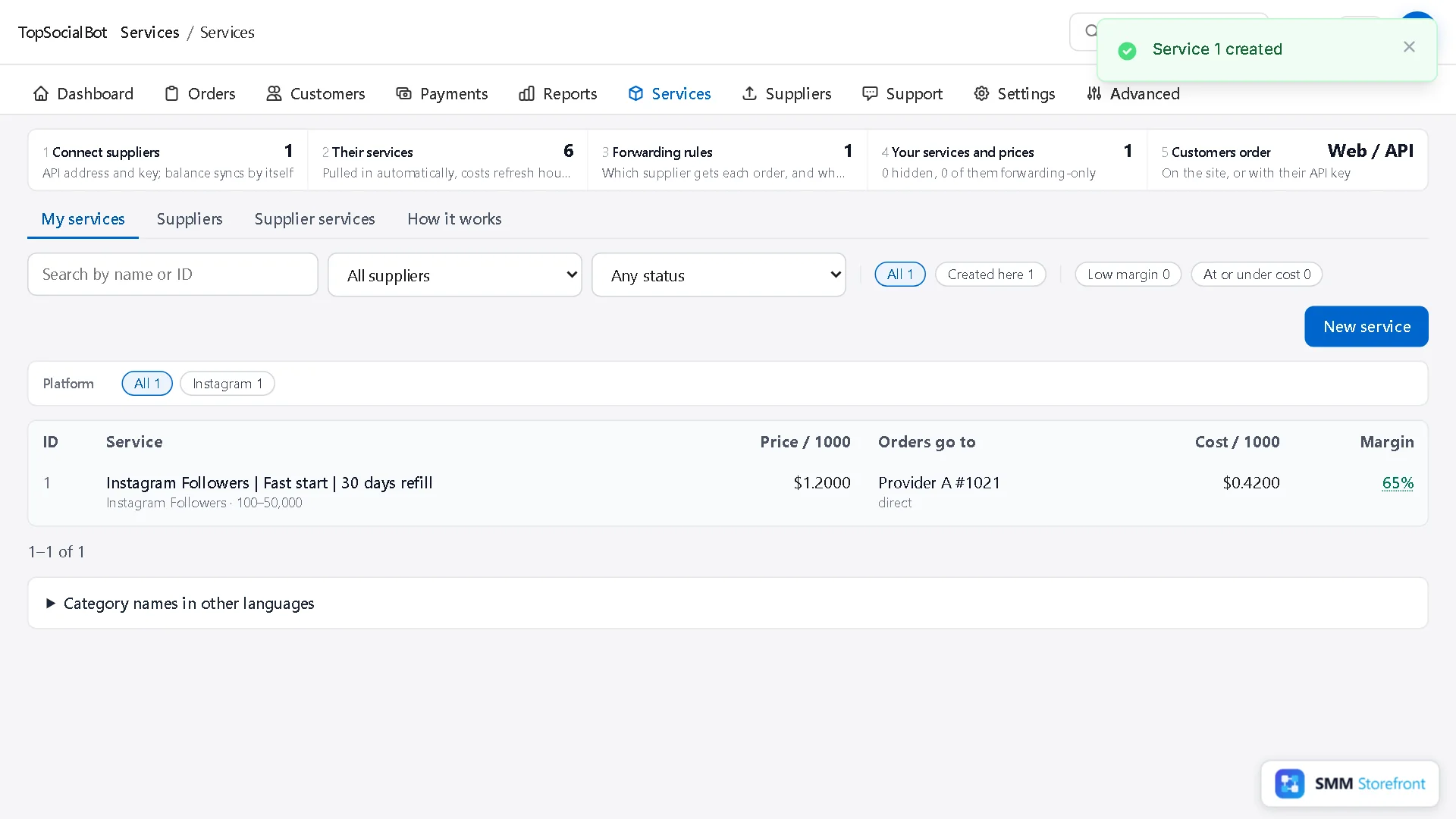
The service is on sale at once. Customers can order it on your site or through the API with their key.
3. Check the forwarding rule
Every service has a forwarding rule: which supplier gets its orders. Creating the service from the catalogue made one for you, sending everything to that supplier. To see it, click Forwarding rules in the strip at the top of the Services page and open the rule named after your service.
On the right, Try an order shows what would happen to a quantity: which supplier takes it, what the customer pays, what the supplier costs and what you keep. Nothing is ordered or charged.
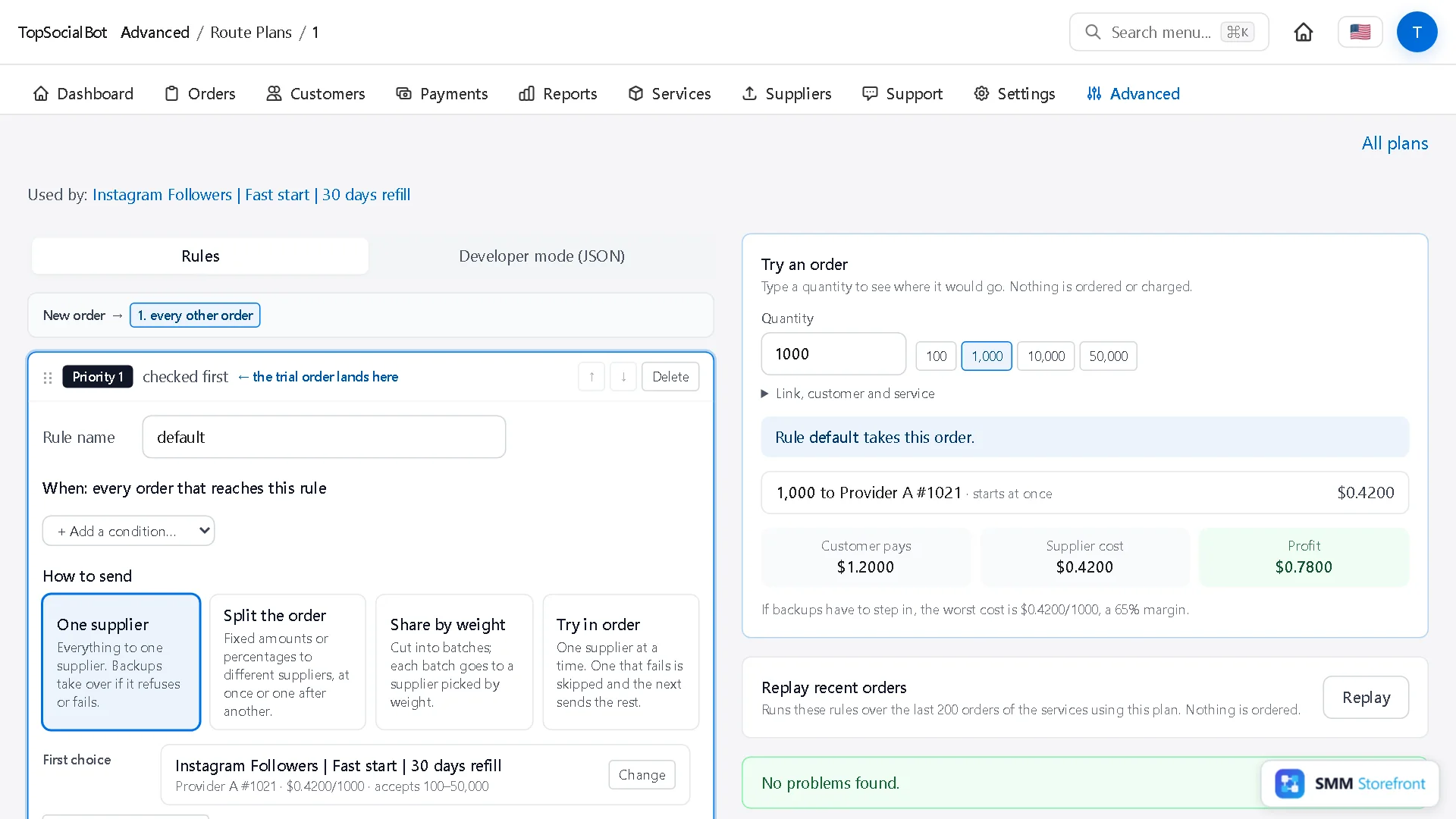
One supplier is enough to start. The same page is where you later add backup suppliers, split orders by size or cap the cost. Adding backup suppliers has its own guide.
4. Watch the orders
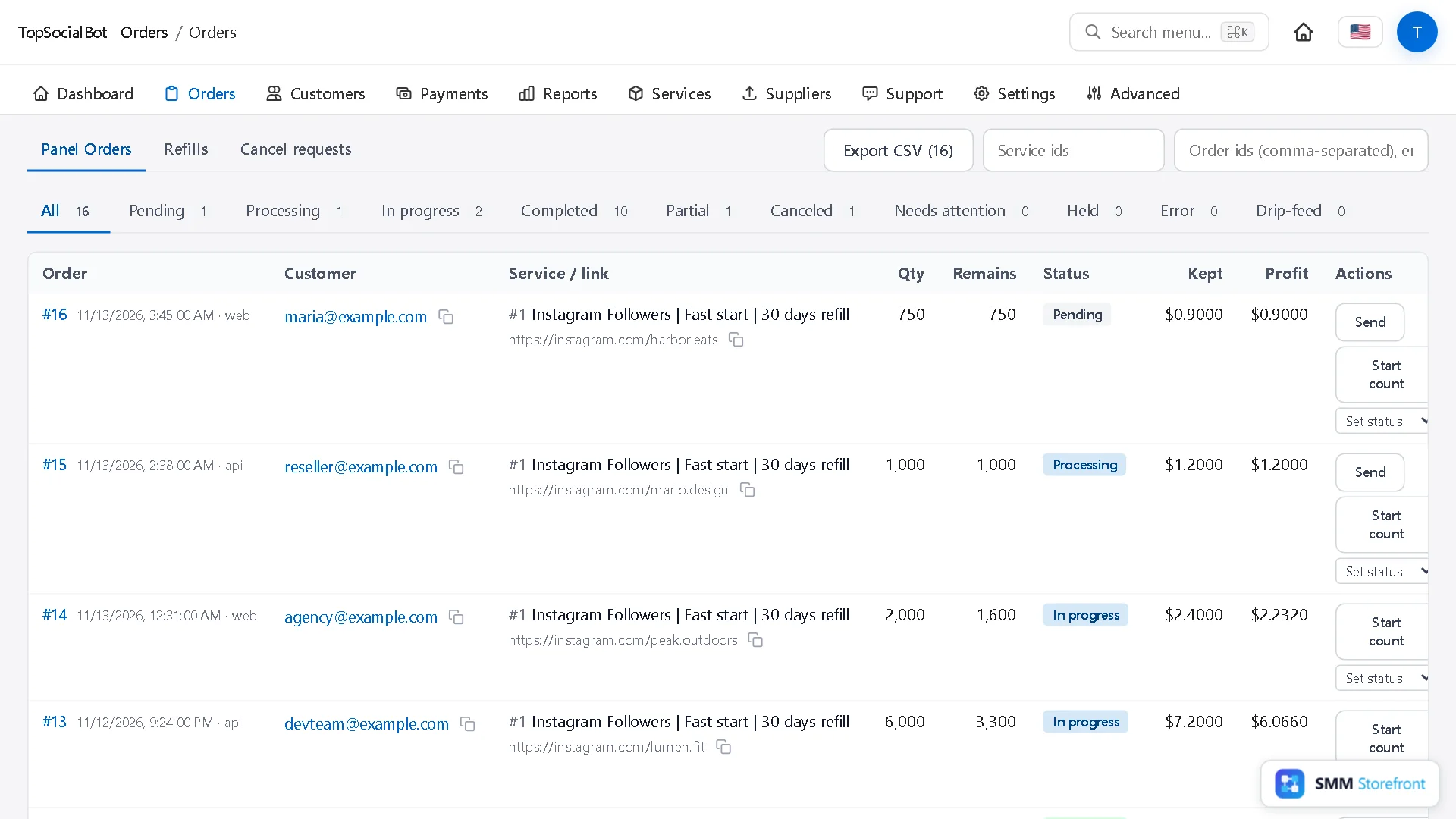
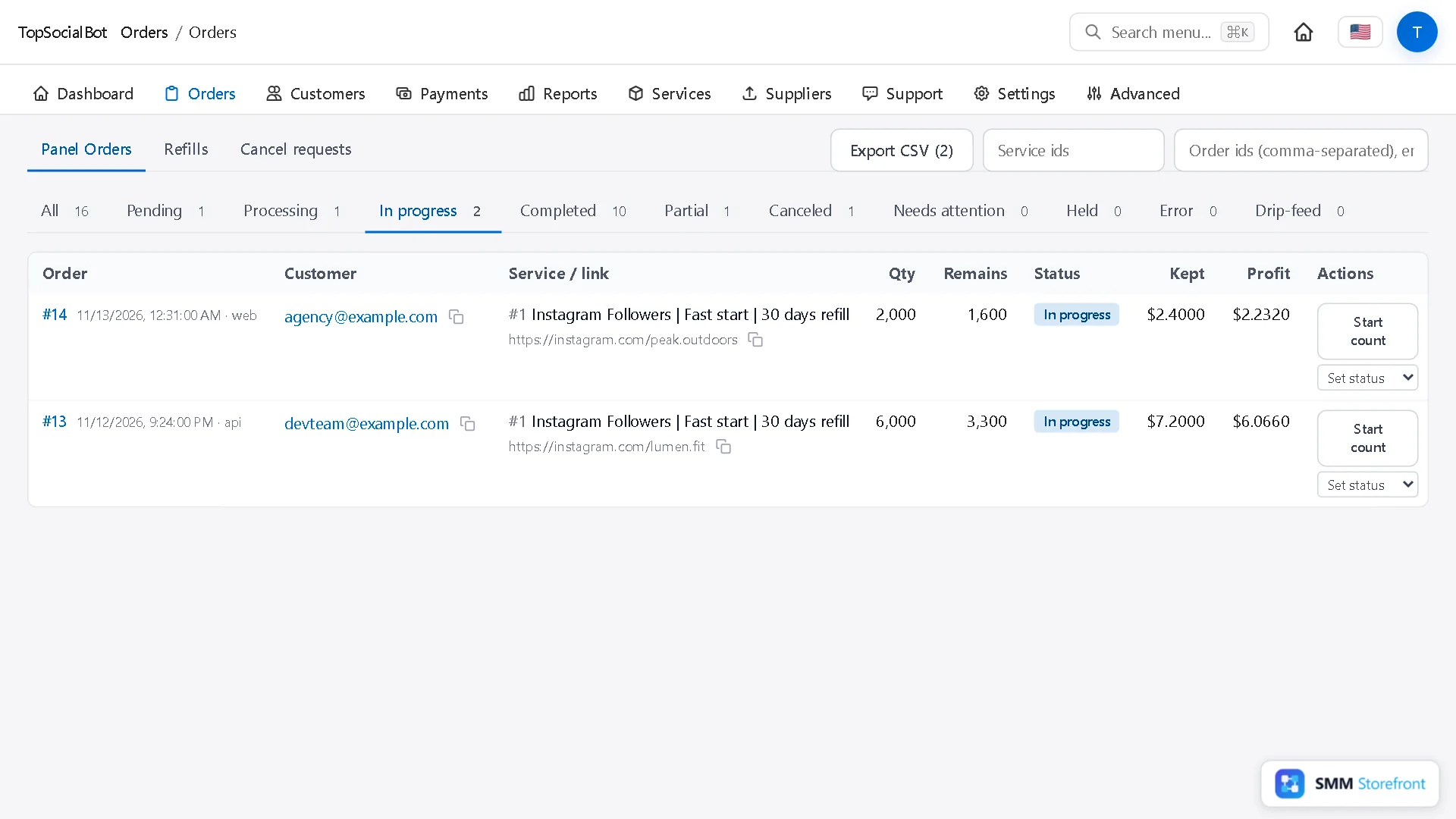
Orders lists every order: who placed it and how (web or API), the service and link, quantity and what remains, the status, what you kept after refunds, and your profit. The tabs filter by status, each with its count.
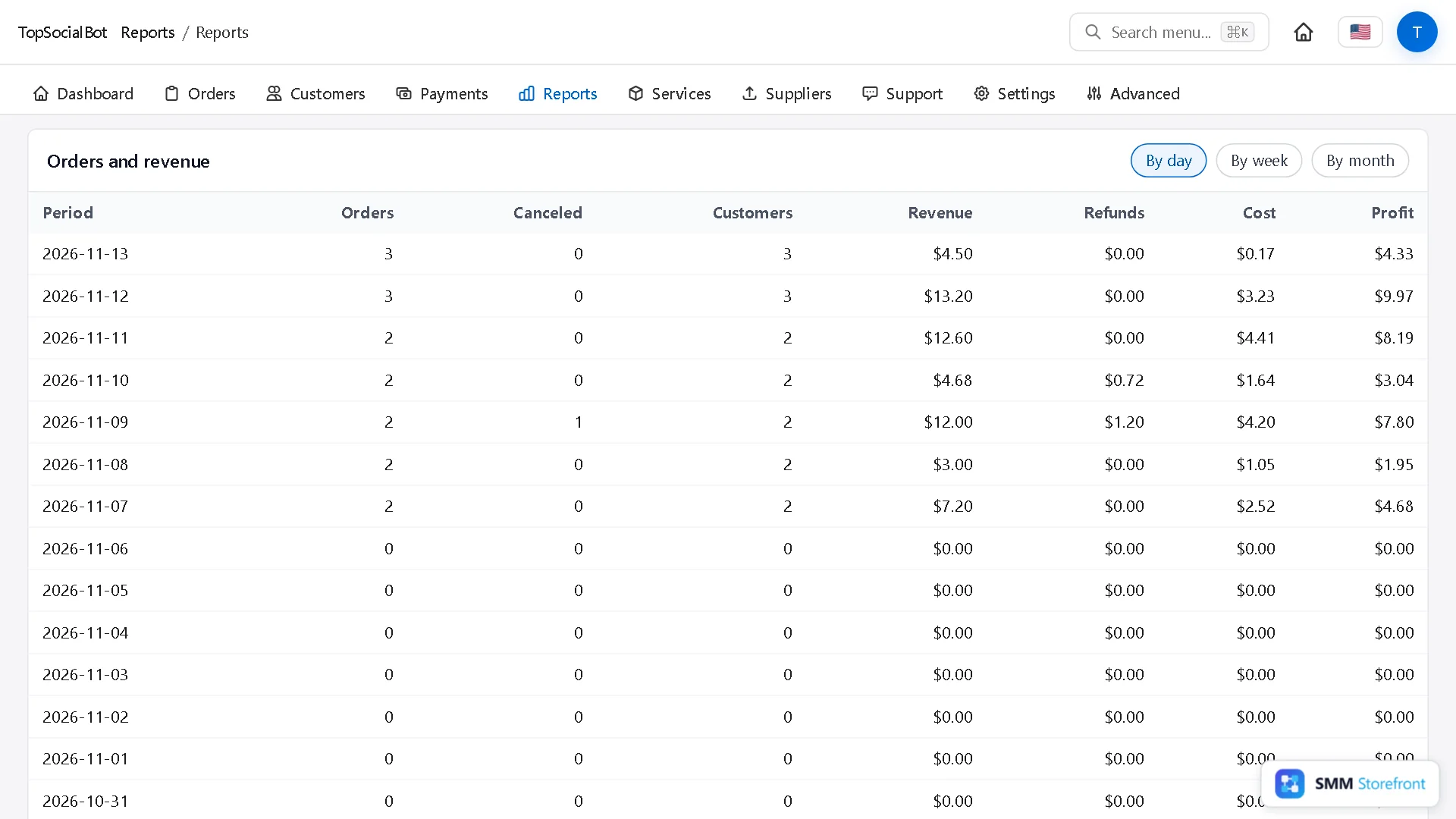
Reports adds it up. The first table goes by day, week or month: orders, cancellations, customers, revenue, refunds, supplier cost and profit.
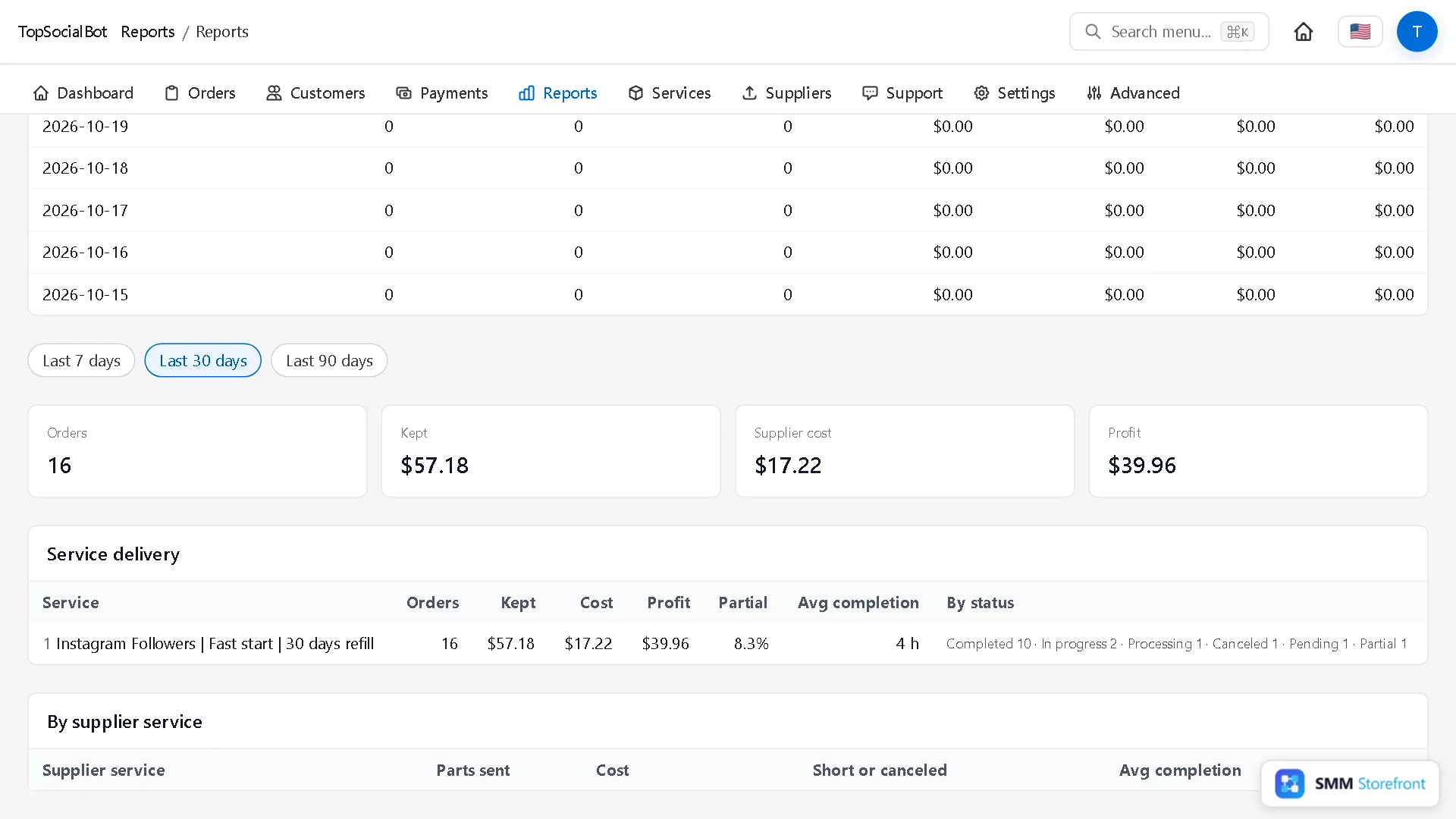
Under it are the totals for the last 7, 30 or 90 days, and a table per service with its partial rate and average completion time, which is where a supplier that has started to slip shows up first.
Questions
Can I connect more than one supplier?
Yes. Add each one the same way. A service can then use one as first choice and the others as backups.
What happens when a supplier changes its cost?
The cost on your side follows within the hour, and the margin shown on the service changes with it. The Services list has filters for Low margin and At or under cost, so those services are one click away.
Do I have to create every service by hand?
Each service you sell is created from a supplier service with one click and a price. You only pick the ones you want; nothing goes on sale by itself.
Where do customers see the service?
On your panel's services page and in the API service list, under the platform and category you picked.
The full list of what the panel does is on the SMM panel page.
What to do next
- How to add backup providers to a service, so one provider going down does not stop your ordersOne supplier is a single point of failure. Give each service a backup that takes over by itself.
- How to route orders by size, or split one order between providersSend small and big orders to different providers, or split one order between two.
- How to make sure a supplier price rise never makes you sell at a lossMake sure a supplier price rise shows up as a warning and never as a loss.
About the author

Marcus Reed
Head of Storefront Operations
Former SMM panel operator. Writes about launch timelines, payment routing, and what resellers need before day one.